Posts

Showing posts with the label AD_Powershell

Powershell to add Domain Computer group in all GPO's

  $gpos = get-gpo -all foreach ($gpo in $gpos) { Set-GPPermissions -Name $gpo.DisplayName -PermissionLevel GpoRead -TargetName “Domain Computers” -TargetType Group }

Powershell: Remove multiple users from a single AD group

 Remove multiple users from a single AD group https://www.powershellbros.com/remove-user-from-specifc-ad-groups-using-powershell/ Start-Transcript -Path C:\Temp\Remove-ADUsers.log -Append #Taking AD group member detail and will send them by Mail. #Getting AD group member detail and save in CSV format. (Get-ADGroup " AD-Group-Name " -properties members).members | Get-ADUser -properties displayName | Select-Object displayName,SamAccountName,emailaddress | export-CSV c:\users\administrator\ AD-Group-Name (or File-Name) .csv #Import the user list $Users = Import-Csv " C:\Temp\ Users.csv " #Update the AD group name which is need to be removed for listed users. $Group = “ AD-Group-Name ” $Report = @() foreach ($User in $Users) {     $UPN = $User.UserPrincipalName     $ADUser = Get-ADUser -Filter "UserPrincipalName -eq '$UPN'" | Select-Object SamAccountName         $ExistingGroups = Get-ADPrincipalGroupMembership $ADUser.SamAccountName | Select-Obje...

Homepath profile path set permission

  $csv = Import-Csv -Path "$env:userprofile\desktop\KDrivePath.csv"  ForEach ($item In $csv) {     $acl = Get-Acl $item.Path     $AddPerm = New-Object System.Security.AccessControl.FileSystemAccessRule($item.GroupName,"FullControl","ContainerInherit, ObjectInherit", "None","Allow")      $acl.SetAccessRule($AddPerm)     $acl | Set-Acl $item.Path     Write-Host -ForegroundColor Green "Group $($item.GroupName) created!" }

DHCP - Report with DHCP scope option

  $ListofScopesandTheirOptions = $Null $PrimaryDHCPServer = "s217124rgvw210" $Scopes = Get-DhcpServerv4Scope -ComputerName $PrimaryDHCPServer #For all scopes in the primary server, get the scope options and add them to $LIstofSCopesandTheirOptions foreach ($Scope in $Scopes) { $LIstofSCopesandTheirOptions += Get-DHCPServerv4OptionValue -ComputerName $PrimaryDHCPServer -ScopeID $Scope.ScopeId |select @{label=”DHCPServer”; Expression= {$PrimaryDHCPServer}},@{label=”ScopeID”; Expression= {$Scope.ScopeId}},@{label=”ScopeName”; Expression= {$Scope.Name}},* }

User - Get user name from SID value

 Get user name from SID value $sid = ‘SID-VALUE’ Get-ADObject –IncludeDeletedObjects -Filter "objectSid -eq '$sid'" | Select-Object name, objectClass Refer: Thanks to http://woshub.com/hot-to-convert-sid-to-username-and-vice-versa/

DHCP - Report for all DHCP scopes with detail

Script for DHCP scope report: $DHCP_Scopes = Get-DhcpServerv4Scope –ComputerName   FQDN   -ErrorAction Stop             #$DHCP_Scopes = $Null     $output = Foreach ( $DHCP_Scope in $DHCP_Scopes ) {         # Going through the scopes returned in a given server         $DHCP_Scope_Stats = Get-DhcpServerv4ScopeStatistics -ComputerName   FQDN   -ScopeId $DHCP_Scope . ScopeId         [ PSCustomObject ] @{             'DHCP Server'     = $DHCP_Server . DNSName             'DHCP IP'         = $DHCP_Server . IPAddress             'Scope ID'    ...

Users - Move multiple users to mutiple OU from CSV file

Below script can use to move multiple users to mutiple OU from CSV file. #Import AD Module Import-Module ActiveDirectory $Imported = Import-Csv -Path "C:\Users\Administrator\Desktop\Move.csv" $Imported | ForEach-Object { $SamAccountName = $_.SamAccountName Enable-ADAccount -Identity $SamAccountName # Retrieve DN of User. $UserDN = (Get-ADUser -Identity $_.SamAccountName).distinguishedName $TargetOU = $_.TargetOU Write-Host " Moving Accounts ..... " # Move user to target OU. Move-ADObject -Identity $UserDN -TargetPath $TargetOU } Write-Host " Completed move " $total = ($Imported).count Write-Host $total "User Moved Successfully"

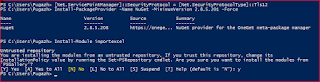
Set Powershell to TLS 1.2

Image
Set Powershell to TLS 1.2 [Net.ServicePointManager]::SecurityProtocol = [Net.SecurityProtocolType]::Tls12

USER - List of users present in list of AD groups

List of users present in list of AD groups $users = Get-content "$env:USERPROFILE\Desktop\users.txt" $groups = Get-Content "$env:USERPROFILE\Desktop\Groups.txt" $result = foreach($user in $users){  foreach($group in $groups){ try{ $groupmembers = Get-ADGroupMember $group -ErrorAction Stop }   catch{ $groupmembers = $null } if($groupmembers.samaccountname -match $user){   [PSCustomObject]@{ Name = $user Group = $group Member = 'True' } }   else{ [PSCustomObject]@{   Name = $user Group = $group Member = 'False' } } } } $result | export-csv  "$env:USERPROFILE\Desktop\result.csv" -NoTypeInformation

PowerShell: Add bulk users in one AD group

 Add Multiple users in one AD group: Import-Module ActiveDirectory $grp = ‘test1‘ $comps=Get-Content C:\users.txt $grpDN = (get-adgroup $grp).distinguishedname foreach ($user in $users) { #$dns=get-aduser $user $b=$dns.distinguishedname Add-ADGroupMember -Identity $grpDN -member $user }

Powershell: Get-aduser filter with two conditions

 PowerShell to filter two conditions. $list = get-aduser -filter { enabled -eq "true" -and passwordNeverExpires -eq "false" } -properties Name , PasswordNeverExpires   #|  Select-Object DistinguishedName, Name, Enabled $count = $list . Count

POWERSHELL PING CMD with date and time

CMD to run with date for PING CMD ping.exe -t COMPUTER-NAME | Foreach{"{0} - {1}" -f (Get-Date),$_} $timestamp = Get-Date -Format "yyyyMMdd" ping.exe -t gatewayx.us.ecp.ensono.com | Foreach{"{0} - {1}" -f (Get-Date),$_} >$env:COMPUTERNAME$timestamp.TXT

AD group report with Name, emailid, samaccount

AD group report with Name, email id, samaccount Working for me: (Get-ADGroup "Test1" -properties members).members | Get-ADUser -properties displayName | Select-Object displayName,SamAccountName,emailaddress | export-CSV c:\users\administrator\File-Name.csv #User full cmd: (Get-ADGroup -Identity Test1 -Properties members).members Not works: 1. Get-ADGroupMember -identity "Group Name" -Recursive | Where-Object { $_.objectClass -eq "User" } | Get-ADUser -Properties Name,SamAccountName,emailaddress | Select-Object Name,SamAccountName,emailaddress | export-CSV c:\File-Name.csv --- 2. $ADGroupName = "YourADGroupName" $InputPath= "c:\UserCAIs.txt" $a = @(Get-ADGroup $ADGroupName -Properties Member | Select-Object -ExpandProperty Member) ForEach ($member in $a) {  $SplitStep1 = ($Member -split ",",2)[0]  $SplitStep2 = ($SplitStep1 -split "=",2)[1]  $SplitStep2 = $SplitStep2 | out-file -Append $I...

Powershell to search with string in all GPO

Powershell to search with string in all GPO $string = Read-Host -Prompt "What string do you want to search for?" $DomainName = $env:USERDNSDOMAIN write-host "Finding all the GPOs in $DomainName" Import-Module grouppolicy $allGposInDomain = Get-GPO -All -Domain $DomainName Write-Host "Starting search...." foreach ($gpo in $allGposInDomain) {     $report = Get-GPOReport -Guid $gpo.Id -ReportType Xml     if ($report -match $string) {         $Match = write-host "********** Match found in: $($gpo.DisplayName) **********"     }     else {         $Nomatch = Write-Host "No match in: $($gpo.DisplayName)"     } }

Powershell script for all AD user with Lastlogontimestamp

Powershell script for all AD user with Lastlogontimestamp: Get-ADUser -Filter * -Properties name,samaccountname,enabled,emailaddress,DistinguishedName,description,Lastlogontimestamp,lastlogondate,Department,whenCreated,location | Select-object name,samaccountname,enabled,emailaddress,DistinguishedName,description,lastlogondate,Department,whenCreated,location,@{Name="LastLogonTimeStamp"; Expression={[DateTime]::FromFileTime($_.lastLogonTimestamp).ToString('yyyy-MM-dd_hh:mm:ss')}} | Sort-Object -Property Name | Export-Csv FILENAME.csv
POWERSHELL - Scripts to reset the AdmPwdExpirationTime for AD Computers in LAPS

LAPS powershell script to reset the AdmPwdExpirationTime for AD Computers Import-Module ActiveDirectory Import-CSV "C:\Test.csv" | ForEach-Object { $Computer = $_.ComputerName Set-ADComputer -Identity $Computer -Clear ms-Mcs-AdmPwdExpirationTime  } # | Out-File -filepath "C:\output.txt"

Powershell - Copy the folder with Permission (ACL)

The below script will copy the folder with ACL. Beauty is it will create the folder in the destination path if already not there, where as we can't do this from ROBOCOPY. $finalreport = @() $servers = Get-Content -Path "C:\Delete\directories.txt" Foreach ($server in $servers) { ROBOCOPY "$server" "D:\TEST\$server" /MIR /SEC /pf /R:3 /v /LOG:C:\Delete\nameoflogfile123.txt }

Powershell to export COMPUTER list from OU

Powershell to export COMPUTER list from OU: Get-ADcomputer -Filter * -SearchBase 'OU=Windows 7 Desktops,OU=Workplace,DC=PUGAZH,DC=COM' -Properties Name,CanonicalName,DistinguishedName,Description,Enabled,OperatingSystem | select-object Name,CanonicalName,DistinguishedName,Description,Enabled,OperatingSystem | Sort-Object -Property Name | Export-Csv AllComputers_2019.csv

Powershell: SNMP CONFIGURATION AND TRAP

SNMP CONFIGURATION Import-Module ServerManager $check = Get-WindowsFeature | Where-Object {$_.Name -eq "SNMP-Services"} If ($check.Installed -ne "True") { Install-WindowsFeature -Name 'SNMP-Service','RSAT-SNMP' } New-ItemProperty -Path HKLM:\SYSTEM\CurrentControlSet\Services\SNMP\Parameters\ValidCommunities -Name PUGAZH -Value 8 -PropertyType "Dword" -Force New-ItemProperty -Path HKLM:\SYSTEM\CurrentControlSet\services\SNMP\Parameters\PermittedManagers -Name "PUGAZH" -Value 10.10.05.111 -PropertyType "String" -Force New-Item -Path HKLM:\SYSTEM\CurrentControlSet\Services\SNMP\Parameters\TrapConfiguration -Name PUGAZH -Force New-ItemProperty -Path HKLM:\SYSTEM\CurrentControlSet\Services\SNMP\Parameters\TrapConfiguration\PUGAZH -Name pugazh -Value 10.10.05.111 #Selecting the NIC and adding route based on IP range. $MGMT = Get-NetIPAddress | ?{ $_.AddressFamily -eq "IPv4" -and ($_.IPAddress -match ...

export for the user list with E-mail id

Powershell to export for the user list with E-mail id Get-ADUser -SearchBase 'DC=pugazh,DC=in’ -filter * -properties SamAccountName,EmailAddress | ft Name, SamAccountName,EmailAddress | Out-File -FilePath "C:\Userl-list.txt"